
Rainbow 6 Private
Installation Guide
Make sure no other anticheat is running before you start, especially Vanguard (Valorant's anticheat).
Go through the checklist before running the loader, then follow the loader steps in order.
- 1
Step 1: Before Running the Loader
- •Make sure you don't have any other anticheats running (VANGUARD ESPECIALLY, Valorant's anticheat)
- •If you have Valorant / Vanguard installed, UNINSTALL THEM with Revo Uninstaller and then restart your PC
- •Make sure all virus protections are off: real-time protection, tamper protection, all of it. It also helps to have your firewalls turned off. We recommend using dControl to disable your antivirus
- •Make sure you don't have an external antivirus running (Norton or similar)
- •Make sure your system supports the product
- •Make sure Virtualization-based security (VBS) is disabled (more about this in Troubleshooting below)
- •Disable RAID to avoid any issues if it's enabled
- 2
Step 2: Disable Vulnerable Driver Blocklist
Open CMD as Administrator and paste this command, then restart your PC after it says completed:
reg add "HKLM\SYSTEM\CurrentControlSet\Control\CI\Config" /v VulnerableDriverBlocklistEnable /t REG_DWORD /d 0 /f
- 3
Step 3: Register & Log In
- 1.If you use the cheat for the first time, you have to register first. The Register button is right under the Login button, click it
- 2.Specify your username and password (make sure to meet the requirements). After that, type in your Invite code and Cheat key
- 3.When the registration succeeds, log in. You should see your active cheat subscriptions
- 4
Step 4: Load & Reboot
- 1.Press the Load button. A pop-up will appear that asks you to reboot your machine
- 2.After you rebooted, open the loader and log in again
- 3.Now press Load for the second time. If everything went as expected, the loader should close itself now. It wouldn't be normal if the loader stays open!
- 5
Step 5: Start R6 & Open the Menu
- 1.Start R6 and make sure it is running in BORDERLESS window mode
- 2.Press the INSERT key when you are inside the game window, the menu should appear. To open / close the menu again, use the INSERT key
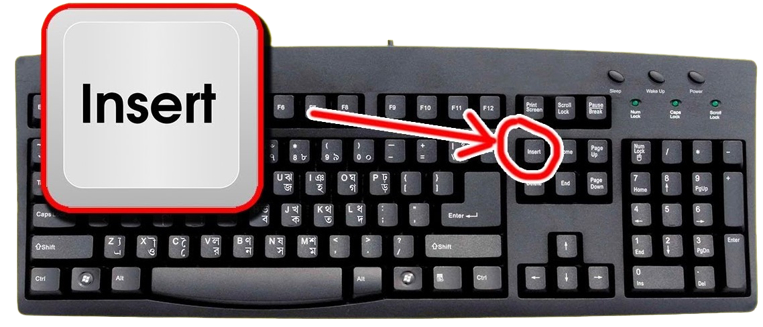
1. Press Insert to open and close the menu
Common Fixes
Check your system requirements
Go to the Windows search bar (bottom left), search System Information and run it. It SHOULD look like this:
- •BIOS Mode: UEFI
- •Secure Boot State: Off
- •Virtualization-based security: Not enabled
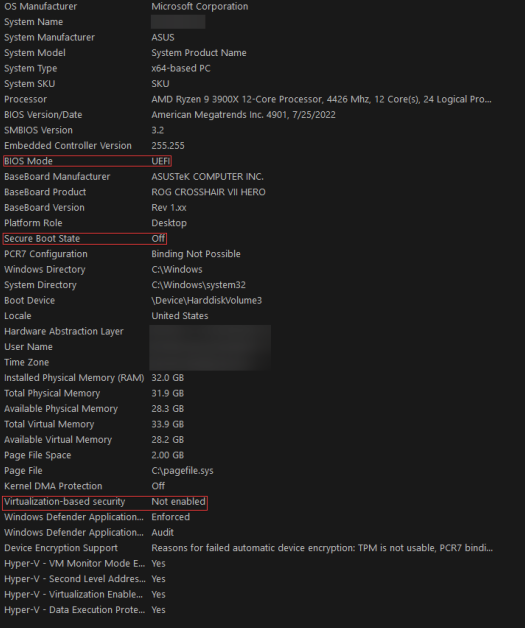
1. BIOS Mode UEFI, Secure Boot Off, Virtualization-based security Not enabled How to turn off HVCI
Launch CMD as Admin and type in these commands:
bcdedit /set hypervisorlaunchtype off
reg add "HKLM\SYSTEM\CurrentControlSet\Control\DeviceGuard\Scenarios\HypervisorEnforcedCodeIntegrity" /v "Enabled" /t REG_DWORD /d 0 /f
reg add "HKLM\SYSTEM\CurrentControlSet\Control\DeviceGuard" /v EnableVirtualizationBasedSecurity /t REG_DWORD /d 1 /f
Menu not showing
Disable Exploit protection in Windows 11 Settings.
Fix crashing / loader not starting
Open CMD as Admin and run these commands one by one:
Dism /Online /Cleanup-Image /ScanHealth
Dism /Online /Cleanup-Image /RestoreHealth
sfc /scannow
Booting issues
Put Windows as the 1st boot option in your BIOS.
Stuck on the loading part in the first step
Make sure that there is no drive mounted with the letter X. The letter can be changed via Disk Management.
The DLL "..." cannot be loaded
In case you get a message box saying The DLL "..." cannot be loaded when trying to start the loader, install the C++ 2015 x64 Redistributable package. On the website, press Download and install it.
Loader keeps wanting to restart your PC?
Usual problems that cause this:
- 1.Multiple Windows installs: physically unplug the other Windows drive
- 2.A second bugged EFI partition somewhere: either erase the partition (needs IT knowledge) or do a Windows reinstall
- 3.Some laptops don't like it and get stuck on a black screen during the restart (rare case): you will likely need a refund
Menu won't open - press the Insert key
The menu opens and closes with the Insert key on your keyboard. Press it once the software is loaded in game.
1. The Insert key on a standard keyboard No Insert key? Use the on-screen keyboard
Some laptops and compact keyboards have no Insert key. Use the Windows on-screen keyboard instead:
- 1.Press Win + R, type "osk" and hit Enter
- 2.Click the Insert key on the on-screen keyboard while in game
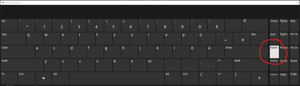
1. Click Insert on the on-screen keyboard Loader doesn't open - add the host file
If the loader does nothing when you open it, Windows is missing the host file it needs:
- 1.Download the host file from the MEGA link below
- 2.Press Win + R, type "drivers" and hit Enter
- 3.Open the "etc" folder
- 4.Paste the host file inside, then run the loader again
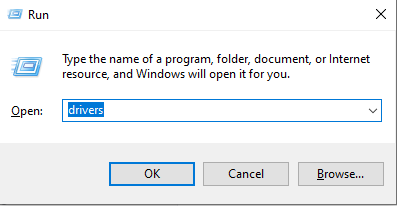
1. Win + R, then type "drivers" Loader crashing or not connecting - use Warp
If the loader crashes, hangs or can't reach the server, your network is likely blocking it. Cloudflare WARP fixes this:
- 1.Download and install WARP from https://1.1.1.1/
- 2.Open the system tray (arrow near the clock) and click the WARP icon
- 3.Toggle WARP on and wait until it says Connected
- 4.Run the loader again and repeat the inject step
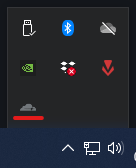
1. Open WARP from the system tray 
2. Wait until WARP says Connected Menu or visuals not centered - set scaling to 100%
Windows display scaling above 100% pushes the menu and visuals off-center:
- 1.Open Windows Settings
- 2.Go to System → Display
- 3.Under Scale and layout, set "Change the size of text, apps, and other items" to 100%
- 4.Set your game to Windowed Fullscreen / Borderless
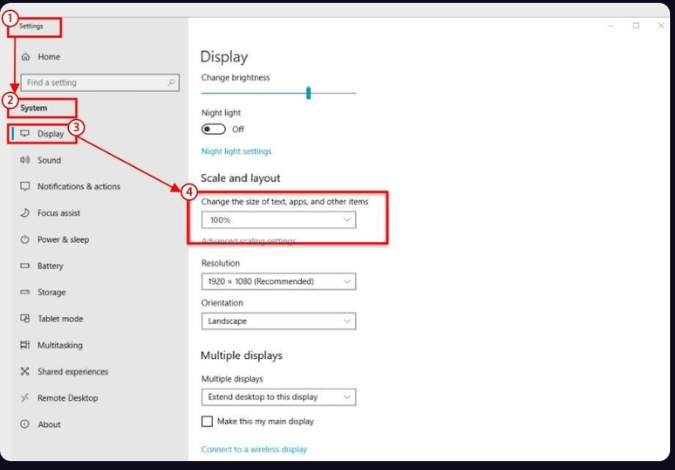
1. Set display scaling to 100%
Still stuck?
- •Still stuck? Open a ticket in Discord with a screenshot of the error.