
Fortnite Ultimate
Installation Guide
Always disable Windows Defender and any anticheat software before running a loader.
Follow every step in order. Skipping antivirus or runtime steps is the main reason the loader fails to start.
Important Note
Follow every step in order. Skipping antivirus or runtime steps is the main reason the loader fails to start.
- 1
Step 1: Install WinRAR
WinRAR is needed to extract the compressed loader files.
- 1.Download WinRAR from the official site below
- 2.Install it with the default settings
- 3.Right-click any downloaded archive → Extract Here
- 2
Step 2: Install Visual C++ Runtimes
Install the x64 runtimes so the loader has everything it needs to run.
- 1.Download the Visual C++ Redistributable (x64) below
- 2.Run the installer and accept the terms
- 3.Restart your PC after it finishes
- 3
Step 3: Disable Windows Defender & Real-Time Protection
Windows Defender frequently triggers false-positive blocks on external software.
- 1.Download dControl from the MEGA link below
- 2.Unzip the folder onto your desktop (Password: sordum)
- 3.Run dControl.exe as Administrator
- 4.Click "Disable Windows Defender" until the interface turns red
- 5.Also disable any third-party antivirus you have installed
- 4
Step 4: Disable Vulnerable Driver Blocklist
Open CMD as Administrator and paste this command, then restart your PC after it says completed:
reg add "HKLM\SYSTEM\CurrentControlSet\Control\CI\Config" /v VulnerableDriverBlocklistEnable /t REG_DWORD /d 0 /f
- 5
Step 5: Prepare Your PC
- •Fully close Fortnite and the Epic Games launcher
- •Close every anticheat in the background (Vanguard, FaceIT, ESEA, EAC, BattlEye)
- •Close VPNs and debuggers (Cheat Engine, x64dbg, etc.)
- 6
Step 6: Run the Loader
- 1.Download the FN Ultimate loader from the top of this page
- 2.Run the loader as Administrator
- 3.Enter your license key
- 4.Open Fortnite once the loader tells you to
Common Fixes
Menu won't open - press the Insert key
The menu opens and closes with the Insert key on your keyboard. Press it once the software is loaded in game.
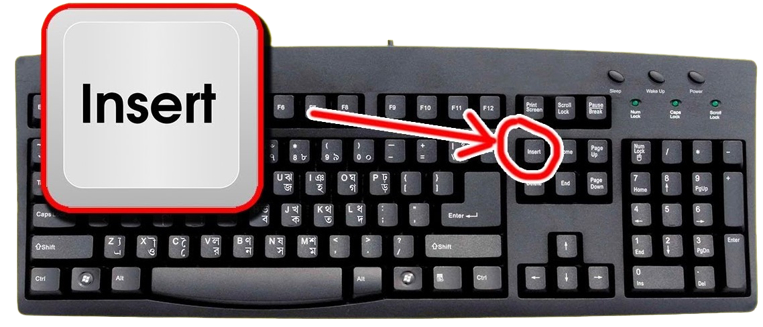
1. The Insert key on a standard keyboard No Insert key? Use the on-screen keyboard
Some laptops and compact keyboards have no Insert key. Use the Windows on-screen keyboard instead:
- 1.Press Win + R, type "osk" and hit Enter
- 2.Click the Insert key on the on-screen keyboard while in game
1. Click Insert on the on-screen keyboard Loader doesn't open - add the host file
If the loader does nothing when you open it, Windows is missing the host file it needs:
- 1.Download the host file from the MEGA link below
- 2.Press Win + R, type "drivers" and hit Enter
- 3.Open the "etc" folder
- 4.Paste the host file inside, then run the loader again
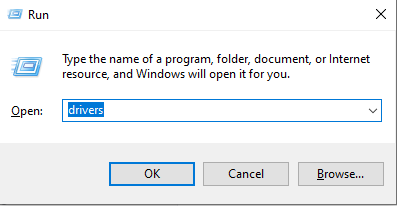
1. Win + R, then type "drivers" Loader crashing or not connecting - use Warp
If the loader crashes, hangs or can't reach the server, your network is likely blocking it. Cloudflare WARP fixes this:
- 1.Download and install WARP from https://1.1.1.1/
- 2.Open the system tray (arrow near the clock) and click the WARP icon
- 3.Toggle WARP on and wait until it says Connected
- 4.Run the loader again and repeat the inject step
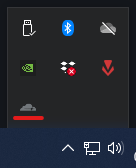
1. Open WARP from the system tray 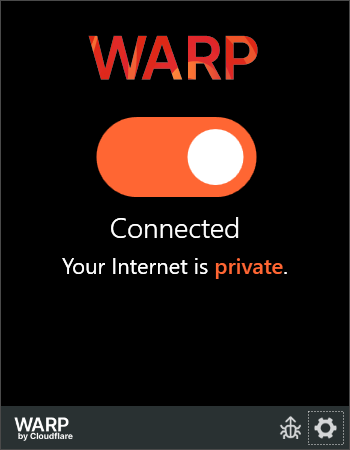
2. Wait until WARP says Connected Game crashing - check Core Isolation
Core Isolation and Memory Integrity stop games from crashing while the software is loaded:
- 1.Open the Windows Search bar
- 2.Type Core Isolation and open it from the results
- 3.In the Windows Security window, locate Memory Integrity
- 4.Turn Memory Integrity On
- 5.Restart your PC if Windows prompts you to
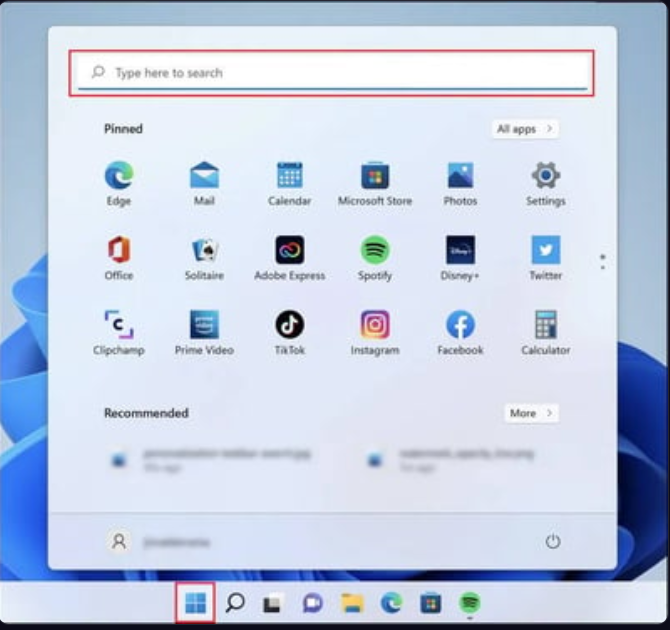
1. Search for Core Isolation 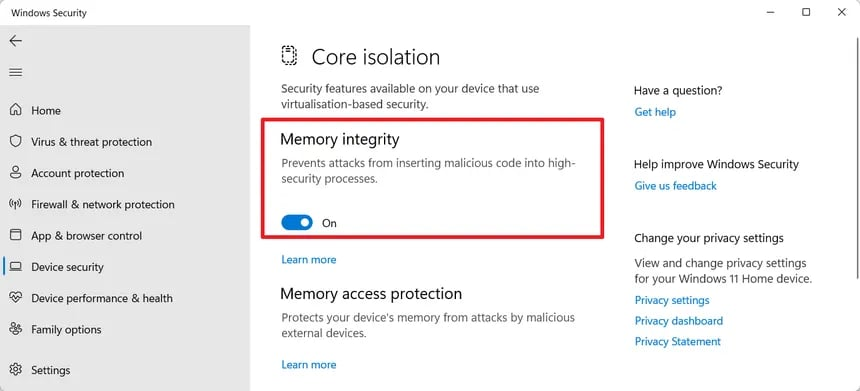
2. Turn Memory Integrity On Menu or visuals not centered - set scaling to 100%
Windows display scaling above 100% pushes the menu and visuals off-center:
- 1.Open Windows Settings
- 2.Go to System → Display
- 3.Under Scale and layout, set "Change the size of text, apps, and other items" to 100%
- 4.Set your game to Windowed Fullscreen / Borderless
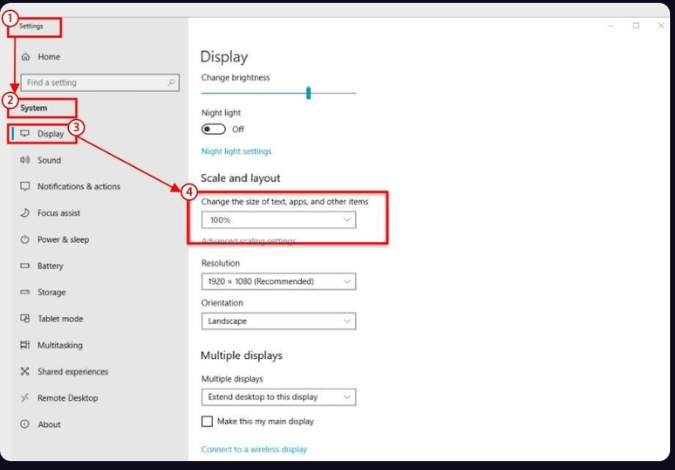
1. Set display scaling to 100%
Still stuck?
- •Still stuck? Open a ticket in Discord with a screenshot of the error.