
Fortnite Private
Installation Guide
Always disable Windows Defender and any anticheat software before running a loader.
Follow every step in order. Skipping antivirus or runtime steps is the #1 reason the loader fails to inject.
- 1
Step 1: Disable Antivirus
Before installing, you must disable Windows Defender and any other antivirus software.
Disable Windows Defender
- 1.Download dControl from the MEGA link below
- 2.Unzip the file (Password: sordum)
- 3.Run dControl.exe as Administrator
- 4.Click "Disable Windows Defender"
- 2
Step 2: Install Required Runtimes
Download and install the following dependencies before running the loader:
- 3
Step 3: Disable Vulnerable Driver Blocklist
Open CMD as Administrator and paste this command, then restart your PC after it says completed:
reg add "HKLM\SYSTEM\CurrentControlSet\Control\CI\Config" /v VulnerableDriverBlocklistEnable /t REG_DWORD /d 0 /f
- 4
Step 4: Disable Core Isolation
- 1.Open Windows Security → Device Security → Core Isolation
- 2.Toggle Memory Integrity OFF
- 3.Restart your PC
- 5
Step 5: Run the Loader
- 1.Download the FN Private loader from the top of this page
- 2.Run the loader as Administrator
- 3.Enter your license key and wait until it says "waiting for fortnite"
- 4.Then open Fortnite and press OK in the lobby
Common Fixes
Menu won't open - press the Insert key
The menu opens and closes with the Insert key on your keyboard. Press it once the software is loaded in game.
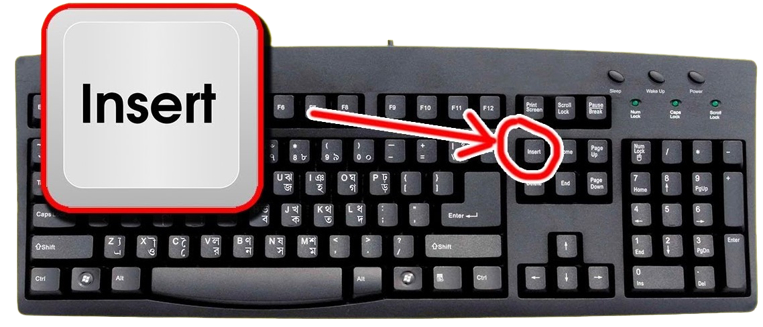
1. The Insert key on a standard keyboard No Insert key? Use the on-screen keyboard
Some laptops and compact keyboards have no Insert key. Use the Windows on-screen keyboard instead:
- 1.Press Win + R, type "osk" and hit Enter
- 2.Click the Insert key on the on-screen keyboard while in game
1. Click Insert on the on-screen keyboard Loader doesn't open - add the host file
If the loader does nothing when you open it, Windows is missing the host file it needs:
- 1.Download the host file from the MEGA link below
- 2.Press Win + R, type "drivers" and hit Enter
- 3.Open the "etc" folder
- 4.Paste the host file inside, then run the loader again
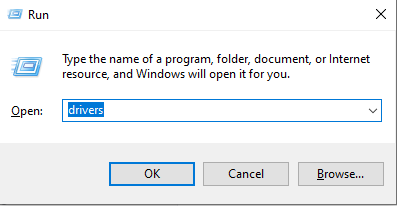
1. Win + R, then type "drivers" Loader crashing or not connecting - use Warp
If the loader crashes, hangs or can't reach the server, your network is likely blocking it. Cloudflare WARP fixes this:
- 1.Download and install WARP from https://1.1.1.1/
- 2.Open the system tray (arrow near the clock) and click the WARP icon
- 3.Toggle WARP on and wait until it says Connected
- 4.Run the loader again and repeat the inject step
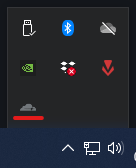
1. Open WARP from the system tray 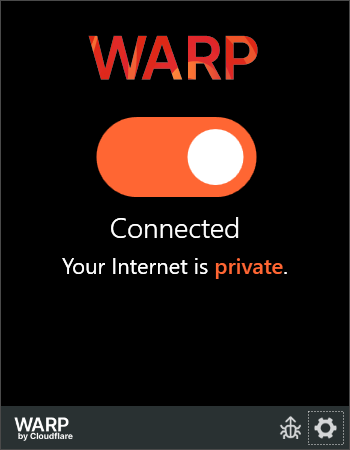
2. Wait until WARP says Connected Game crashing - check Core Isolation
Core Isolation and Memory Integrity stop games from crashing while the software is loaded:
- 1.Open the Windows Search bar
- 2.Type Core Isolation and open it from the results
- 3.In the Windows Security window, locate Memory Integrity
- 4.Turn Memory Integrity On
- 5.Restart your PC if Windows prompts you to
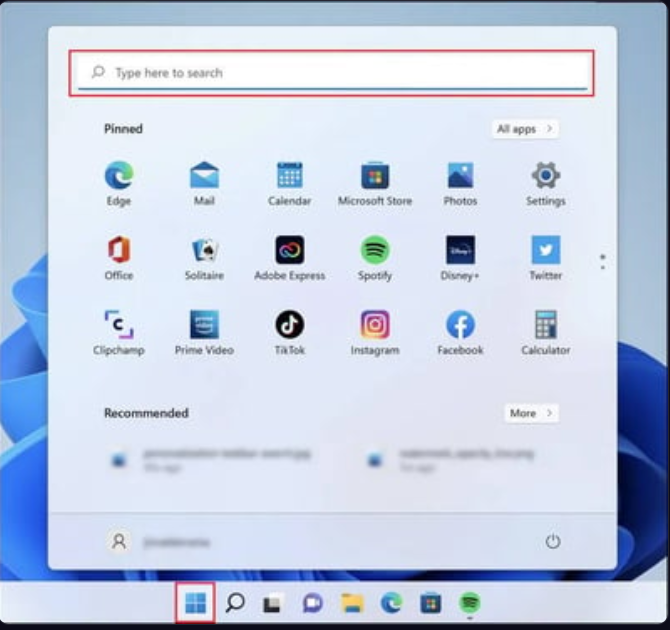
1. Search for Core Isolation 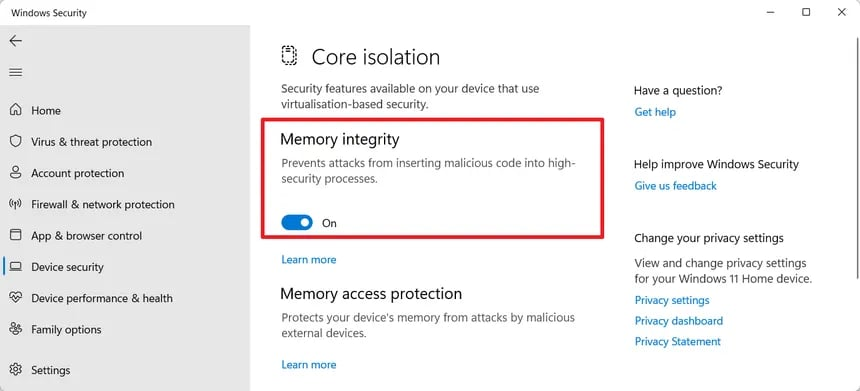
2. Turn Memory Integrity On Menu or visuals not centered - set scaling to 100%
Windows display scaling above 100% pushes the menu and visuals off-center:
- 1.Open Windows Settings
- 2.Go to System → Display
- 3.Under Scale and layout, set "Change the size of text, apps, and other items" to 100%
- 4.Set your game to Windowed Fullscreen / Borderless
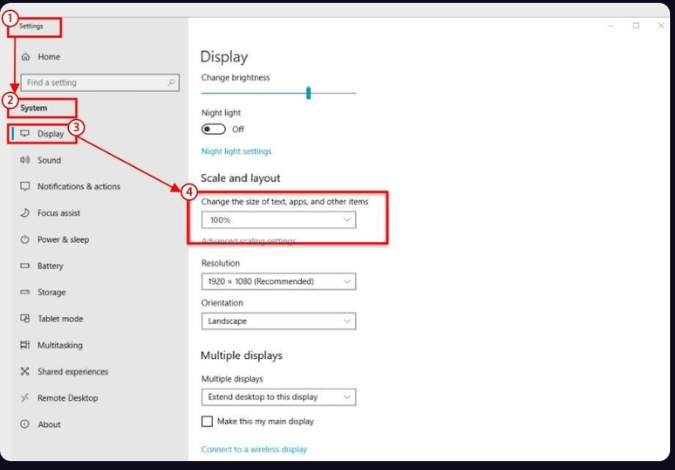
1. Set display scaling to 100%
Still stuck?
- •Still stuck? Open a ticket in Discord with a screenshot of the error.